

Phishing report button
Close the loop — let people report real phishing
Simulations teach people to spot an attack. The Report Phishing button lets them act on it. One click in Outlook forwards a suspicious message straight to your security team’s report inbox.
A single inbox for everything your people flag
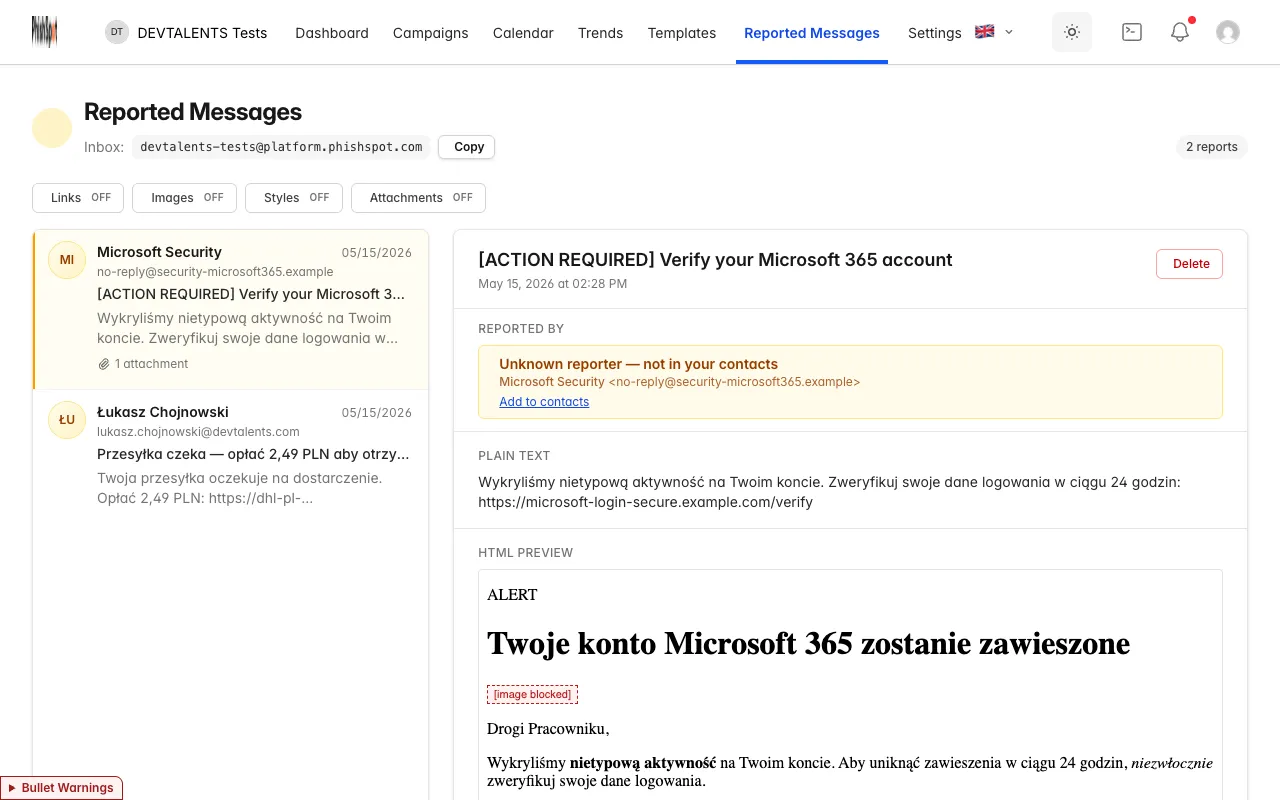
Every report lands in one account-scoped queue. Your team triages real threats and simulation reports side by side, with the sender, subject and reporter at a glance.
- A dedicated forward-to address per account collects reports automatically.
- See who reported, what they reported, and when — sorted newest first.
- Reports from your own simulations are recognized, so real threats stand out.
- Open any message to inspect it safely before you decide what to do.
Built for the people who report and the team who responds
A one-click button for employees, a safe triage queue for security — and nothing dangerous rendered by default.
One-click Report Phishing
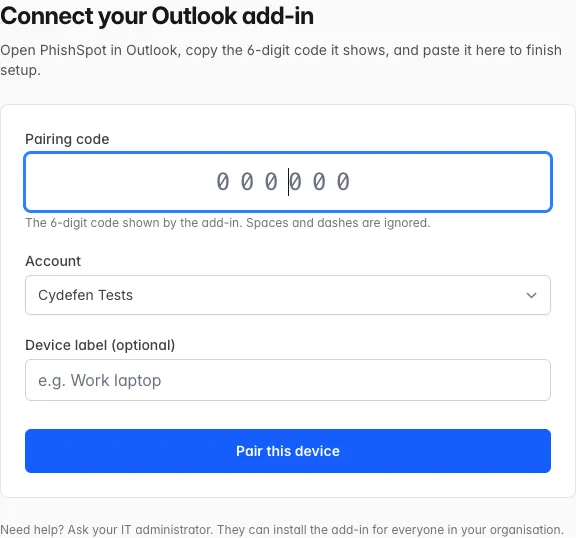
An Outlook add-in puts a Report Phishing button on the ribbon. Employees flag a suspicious email in a single click, with no forwarding instructions to remember.
Per-account report inbox
Each account gets its own forward-to address. Reports collect in one place, cleanly separated between accounts.
Safe preview by default
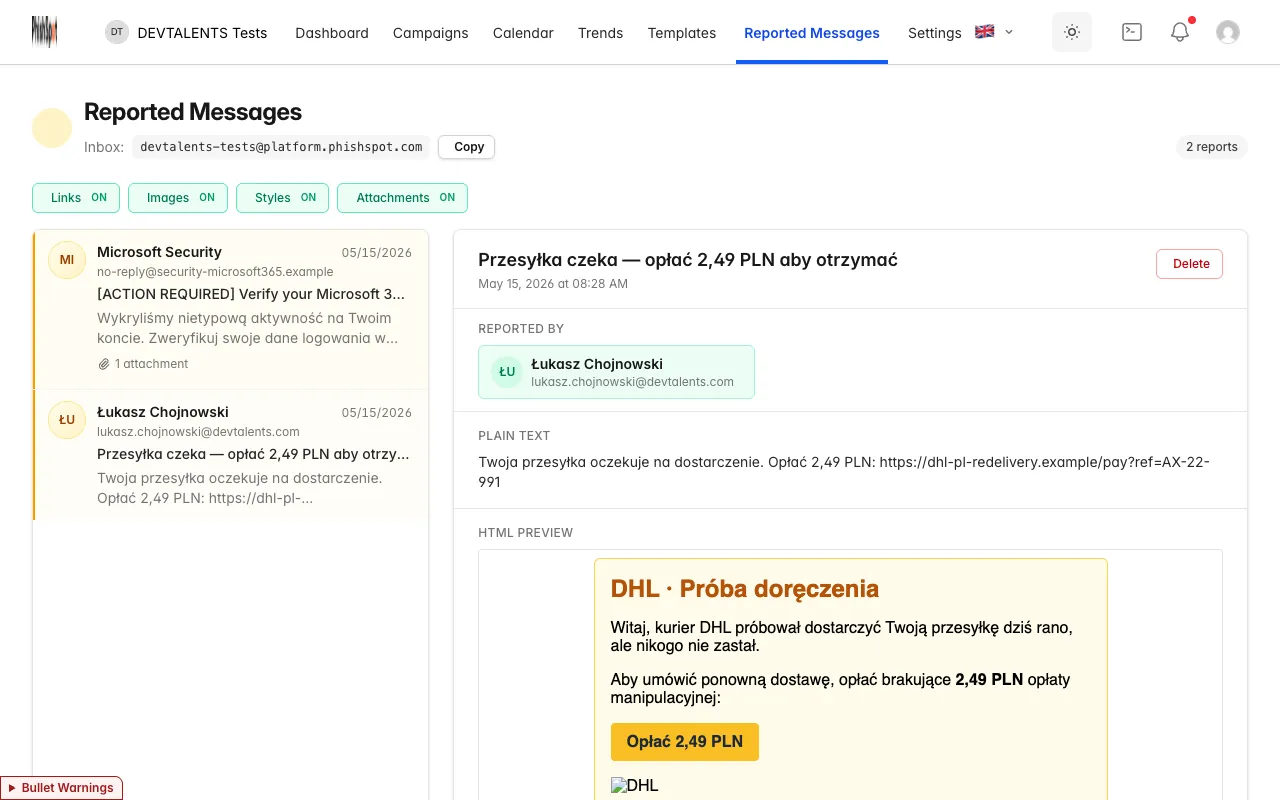
Reported messages open with links, remote images, styles and attachments switched off. You read the content without risking a click.
Known-reporter matching
When a reporter matches a contact, PhishSpot links them automatically — so you know who flagged what without cross-referencing.
Central Outlook deployment
Roll the add-in out across your organization from one place, with version gating so everyone runs a supported build.
Least-privilege token
The add-in authenticates with a token scoped to reported_messages:create only — it can submit reports and nothing else.
Review reported email in a safe preview
Opening a reported message should never put your analyst at risk. PhishSpot renders every report defused — you turn on only what you need to make a call.
- Links, images, styles and attachments are off until you explicitly enable them.
- See the raw sender, subject and headers to judge legitimacy fast.
- A recognized reporter is shown with their matched contact for instant context.
- Decide, dismiss or escalate — with the full picture and none of the danger.
Reporting, explained
How do employees report a phishing email?
They click a Report Phishing button that the Outlook add-in adds to their ribbon. One click submits the message to your report inbox — there’s nothing to forward and no address to remember.
Is it safe to open a reported message?
Yes. Reports render with links, remote images, styles and attachments disabled by default, so nothing loads or executes when your team reviews them. You enable elements individually only if you need to.
Does this work for real phishing, or only simulations?
Both. The button reports any suspicious email. PhishSpot recognizes reports that came from its own simulations, so genuine threats are easy to separate from test traffic.
How do we roll the button out to everyone?
Deploy the add-in centrally across your Microsoft 365 tenant. Version gating makes sure every user runs a supported build, and the add-in’s token is scoped to submitting reports and nothing more.
Turn trained employees into a reporting network
Give every inbox a one-click Report Phishing button and give your security team a safe, single queue to work from.